
A SIP device is one phone connected to your PBX: a desk phone, a softphone, a DECT handset, or anything else that speaks SIP. It is the PBX-side mirror of a real phone, so a user with no device record has nothing to pick up when their extension rings.
Overview
A SIP device is the PBX-side mirror of a real or virtual phone. A user's call rings the SIP devices assigned to them, so without a device record even a fully-configured user has no phone to pick up. Four types share the same record but expose different fields:
| Type | What it is | When to use |
|---|---|---|
| Auto-deployed phone | A managed desk phone the PBX provisions automatically over the network. | The default for new desk phones. |
| Manually provisioned SIP device | Any phone or softphone where you handle the SIP credentials yourself. | Third-party softphones, SIP clients on personal hardware. |
| Gigaset | A DECT cordless handset registered through a Gigaset base station. | Roaming staff inside the office. |
| Trunk | A device that registers through a SIP trunk gateway. | Devices behind an external gateway. |
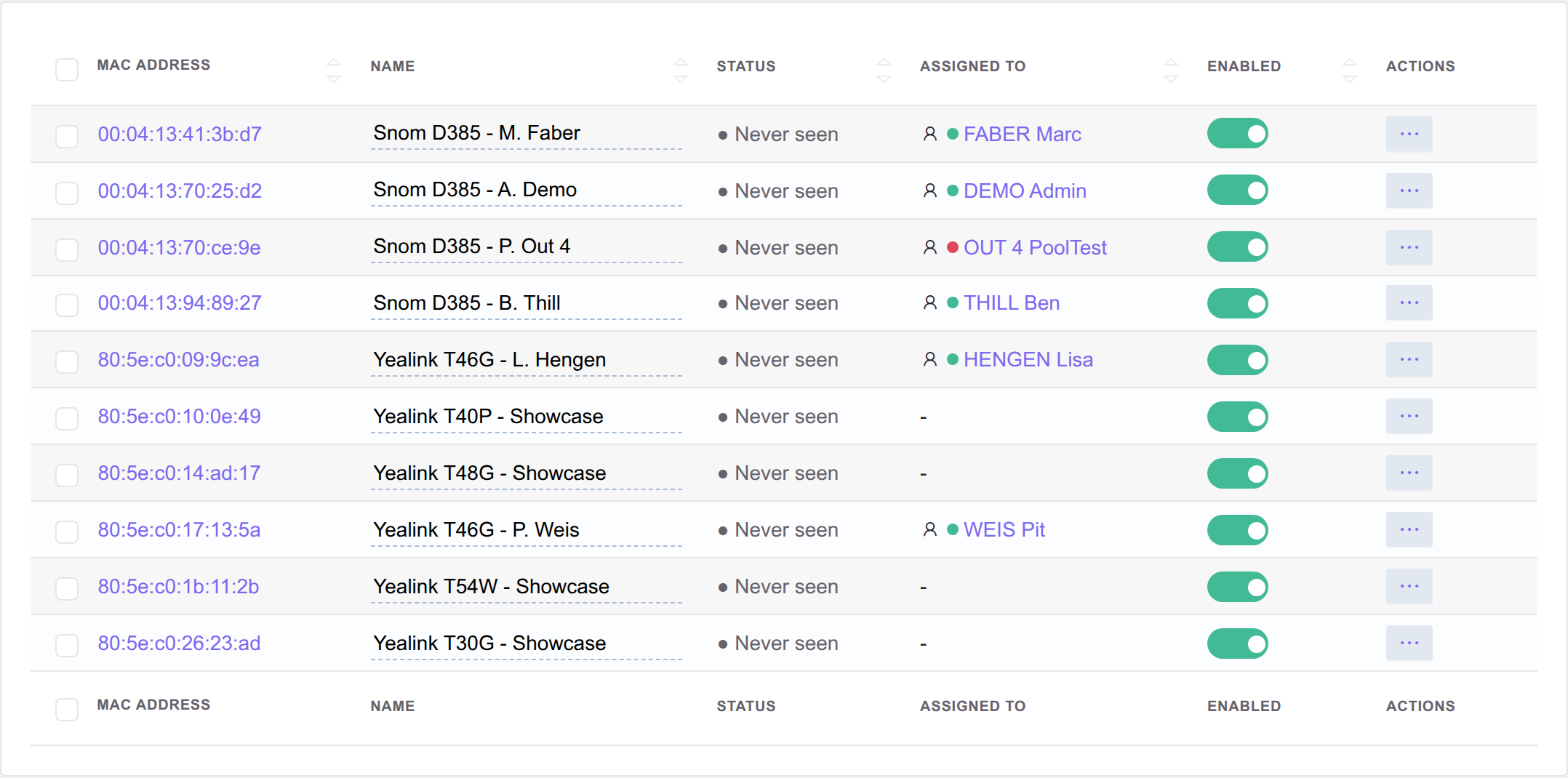
The list is where you confirm a device registered. Read it before testing a call, because an unregistered device does not announce itself anywhere else.
What it does
Assign a device to a user so it rings on their calls, or directly to an extension for a shared or functional phone. A user can have several devices, and they all count as that user's phones. The device only decides what physically rings, not what a caller hears - that comes from the upstream call flow, IVR, or queue.
Before it can send or receive calls, a device must register with the PBX. Auto-deployed phones register automatically through provisioning. Manual devices need the SIP username and password entered on the phone. An unregistered or disabled device cannot be reached, so the call falls through to the next step in the flow. The Allow login toggle decides whether a hot-desking user can claim a shared phone for their session.
Two operations go beyond standard editing:
- Easy deploy - opens a 30-minute window for a freshly-unboxed phone to fetch its provisioning config.
- Push notify - tells a device to refresh its configuration immediately (after BLF reassignments, language changes, and similar).
How to get a new desk phone ringing
The usual "it does not ring" call is a device that never registered, which is not an error state: the call simply falls through to the next step in the flow.
- Make sure the person exists as a user with an extension. The extension is what people dial; the device is what rings.
- Create the device and pick its type. Auto-deployed phone for a managed desk phone, Manually provisioned for a softphone or third-party handset.
- Assign it, to the user for a personal phone or straight to an extension for a shared one. Check the extension is free first: assigning to one that already has a device silently unassigns the previous device.
- Get it to register. Auto-deployed phones need the MAC address and Easy deploy, which opens a 30-minute window for the phone to fetch its config, so power it on inside that window. Manual devices need the SIP username and password typed into the phone itself.
- Confirm the device shows as registered before testing the call. Test only after that.
- If it never registers, work through the three causes in order: credentials (manual), MAC address (auto-deployed), then network (VLAN, firewall).
- After later changes to buttons, language, or labels, use Push notify rather than waiting for the phone to notice.
See also
- Users - the people SIP devices are typically assigned to.
- Extensions - the alternative assignment target for shared / functional phones.
- Phone buttons - the BLF / speed-dial keys configured on each device, with PBX -> group -> user -> device inheritance.
- Pools and Pickup lines - where Location and Tags become routing-relevant.